APICloud 插件集成文档
更新时间:2026-08-03 14:49:20
注:「插件市场地址」
概述
本文是闪验 SDK_APICloud v2.3.x版本的接入文档,用于指导 SDK 的使用方法。
合规性说明
创建应用
注意:如果应用有多个包名或签名不同的马甲包,须创建多个对应包名和签名的应用,否则马甲包将报包名或签名校验不通过。
快速体验示例 Demo
注:需运行真机到真机,安装 SIM 卡,打开手机流量开关,允许网络权限
- 到闪验官网申请创建应用,提供包名包签名/bundleID,得到对应的 appID/appKey
- 搜索初始化方法 shanyan.init,将 appID 换成自己的 appid(appid 安卓/iOS 不同,分别与包名包签名/bundleID 绑定)
- 在模块管理中导入闪验离线插件或云插件
- 在 APP 设置中上传对应包名包签名/bundleID 的安卓 iOS 证书
- 分别云打包安卓 iOS 自定义 Loader
- 手机安装自定义 Loader,运行,设置自定义 Loader 的 IP 和端口,连接到 APICloudStudio2 示例工程
- WIFI 同步 APICloudStudio2 项目到自定义 Loader
引用方式(Android&iOS)
var shanyan = api.require('clSDKShanYanSDKModule')
Android 部分
一、免密登录 API 使用说明
1.初始化
使用一键登录功能前,必须先进行初始化操作。
调用示例
shanyan = api.require('clSDKShanYanSDKModule') shanyan.init({appid:'loXN4jDs'}, function(ret, err){ alert(JSON.stringify(ret)); console.log("callback---button--shanyanSdkInit========"+ret.code+"result===="+ret.result); });
参数描述
| 参数 | 类型 | 说明 |
|---|---|---|
| appId | String | 闪验平台获取到的 appId |
返回参数含义如下:
| 字段 | 类型 | 含义 |
|---|---|---|
| code | Int | code 为 1022:成功;其他:失败 |
| result | String | 返回信息 |
2.预取号
- 建议在判断当前用户属于未登录状态时使用,**已登录状态用户请不要调用该方法**
- 建议在执行拉取授权登录页的方法前,提前一段时间调用预取号方法,中间最好有 2-3 秒的缓冲(因为预取号方法需要 1~3s 的时间取得临时凭证)
- 请勿频繁的多次调用、请勿与拉起授权登录页同时和之后调用。
- 避免大量资源下载时调用,例如游戏中加载资源或者更新补丁的时候要顺序执行
调用示例:
shanyan.preLogin(function(ret, err){ alert(JSON.stringify(ret)); console.log("callback---button--shanyanSdkGetPhoneInfo========"+ret.code+"result===="+ret.result); });
返回参数含义如下:
| 字段 | 类型 | 含义 |
|---|---|---|
| code | Int | code 为 1022:成功;其他:失败 |
| result | String | 返回信息 |
3.拉起授权页
- 调用拉起授权页方法后将会调起运营商授权页面。已登录状态请勿调用 。
- 每次调用拉起授权页方法前均需先调用授权页配置方法,否则授权页可能会展示异常。
- 对应两个回调,一个是拉起授权页的回调,一个是点击一键登录的回调(包含返回键)
调用示例:
var param = {isFinish:true}; shanyan.openActivity(param,function(ret, err){ //alert(JSON.stringify(ret)); console.log("fff"+JSON.stringify(ret)); });
参数描述
| 字段 | 类型 | 含义 |
|---|---|---|
| isFinish | boolean | 点击授权页一键登录按钮有回调时是否自动销毁授权页:true:自动销毁 false:不自动销毁,开发者需主动调用销毁授权页方法进行授权页销毁操作 |
当 type=0 时是拉起授权页回调(ret.type):
| 字段 | 类型 | 含义 |
|---|---|---|
| code | int | code 为 1000:授权页成功拉起其他:失败 |
| result | String | 返回信息 |
当 type=1 时是一键登录回调(ret.type):
| 字段 | 类型 | 含义 |
|---|---|---|
| code | int | code 为 1011:点击返回按钮(包括物理返回键)code 为 1000:点击一键登录获取 token 成功其他:点击一键登录获取 token 失败 |
| result | String | 返回信息 |
当第二个回调外层 code 为 1000 时,result 的返回为
{ "token": "" }
含义如下:
| 字段 | 类型 | 含义 |
|---|---|---|
| token | String | 用来和后台置换手机号。一次有效。 |
4.销毁授权页
A.授权页面自动销毁
1.在授权登录页面,当用户主动点击左左上角返回按钮时,返回码为 1011,SDK 将自动销毁授权页;
2.安卓 SDK,当用户点击手机的硬件返回键(相当于取消登录),返回码为 1011,SDK 将自动销毁授权页
3.当用户设置一键登录或者其他自定义控件为自动销毁时,得到回调后,授权页面会自动销毁
B.授权页手动销毁
1.当设置一键登录为手动销毁时,点击授权页一键登录按钮成功获取 token 不会自动销毁授权页,请务必在回调中处理完自己的逻辑后手动调用销毁授权页方法。
2.当设置自定义控件为手动销毁时,请务必在回调中处理完自己的逻辑后手动调用销毁授权页方法。
调用示例
shanyan.finishAuthActivity();
5.授权页点击监听
调用示例
shanyan.setAuthPageActionListener( {}, /** * 统一事件监听方法 * * type:事件类型(1,2,3) * * 1:隐私协议点击 * 对应方法: * clShanYanSDKManagerWebPrivacyClicked: * privacyIndex: * currentTelecom * code:0、1、2、3(协议页序号) * message:协议名_当前运营商类型 * * 2:协议勾选框点击 * code:0、1(0为未选中,1为选中) * * 3:“一键登录”按钮点击 * code:0、1(0为协议勾选框未选中,1为选中) */ function (ret, err) { console.log(JSON.stringify(ret)); } );
返回参数含义如下:
| 字段 | 类型 | 说明 |
|---|---|---|
| type | int | 点击事件类型:1 隐私协议点击事件2 checkbox 点击事件3 “一键登录”按钮点击事件 |
| code | int | 事件状态码: type= 1:隐私协议点击事件,code=0,1,2,3(协议页序号)type= 2:checkbox 点击事件,code=0,1(0 未选中,1 已选中)type= 3:一键登录按钮点击事件,code=0,1(0 协议勾选框未选中,1 已选中) |
| message | string | 点击事件详细信息 |
6.置换手机号
当一键登录外层 code 为 1000 时,您将获取到返回的参数,请将这些参数传递给后端开发人员,并参考「服务端」文档来实现获取手机号码的步骤。
7.授权页界面配置
调用该方法可实现对三网运营商授权页面个性化设计,每次调用拉起授权页方法前必须先调用该方法,否则授权界面会展示异常。(三网界面配置内部实现逻辑不同,请务必使用移动、联通、电信卡分别测试三网界面)
配置授权页方法
shanyan.setAuthThemeConfig({ widgets:{ widget1: {widgetId:"customView_one", type:"TextView", left:"", top:"330", right:"", bottom:"", width:"", height:"30", textContent:"自定义控件1(点击不销毁)", textFont:"13", textColor:"#cc0000", backgroundColor:"#ffffff", backgroundImgPath:"", isFinish:"false"}, widget2: {widgetId:"customView_two", type:"ImageView", left:"", top:"370", right:"", bottom:"", width:"60", height:"60", textContent:"自定义控件2(点击销毁)", textFont:"13", textColor:"#00aa00", backgroundColor:"", backgroundImgPath:'widget://image/qq.png', isFinish:"true"} }, uiConfig:{ setAuthBGImgPath:'widget://image/sy_login_bg.png', setNavColor:'#ff0000', setNavText:'一键登录', setNavTextColor:'#080808', setNavTextSize:'16', setAuthNavTransparent:'true', setAuthNavHidden:'false', setNavReturnBtnWidth:'25', setNavReturnImgPath:'sy_sdk_left', setNavReturnBtnOffsetX:'0', setNavReturnBtnOffsetY:'-1', setNavReturnBtnOffsetRightX:'-1', setNavReturnBtnHeight:'25', setNavReturnImgHidden:'false', setLogBtnText:"本机号登录", setLogBtnOffsetY:"260", setAppPrivacyOne:{ title:'用户协议1', url:"http://flash.253.com/" }, setPrivacyText:{ privacyTextOne:'同意', privacyTextTwo:"、", privacyTextFive:"并授权登录" }, }}, function(result){ console.log("ffff"+result.code+"result===="+result.result); } );
自定义控件回调
ret:
- 类型:JSON 对象
- 内部字段:
{ code:0 result:'', //自定义控件id, 点击时触发,可用于自定义控件的点击事件处理 }
ShanYanUIConfig.java 配置元素说明
授权页背景
String setAuthBGImgPath; //普通图片
授权页导航栏
bool setFullScreen; //设置是否全屏显示(true:全屏;false:不全屏)默认不全屏 String setNavColor; //设置导航栏背景颜色 String setNavText; //设置导航栏标题文字 String setNavTextColor; //设置导航栏标题文字颜色 int setNavTextSize; //设置导航栏标题文字大小 String setNavReturnImgPath; //设置导航栏返回按钮图标 bool setNavReturnImgHidden = false; //设置导航栏返回按钮是否隐藏(true:隐藏;false:不隐藏) int setNavReturnBtnWidth; //设置导航栏返回按钮宽度 int setNavReturnBtnHeight; //设置导航栏返回按钮高度 int setNavReturnBtnOffsetRightX; //设置导航栏返回按钮距离屏幕右侧X偏移 int setNavReturnBtnOffsetX; //设置导航栏返回按钮距离屏幕左侧X偏移 int setNavReturnBtnOffsetY; //设置导航栏返回按钮距离屏幕上侧Y偏移 bool setAuthNavHidden; //设置导航栏是否隐藏(true:隐藏;false:不隐藏) bool setAuthNavTransparent; //设置导航栏是否透明(true:透明;false:不透明) bool setNavTextBold; //设置导航栏字体是否加粗(true:加粗;false:不加粗)
授权页 logo
String setLogoImgPath; //设置logo图片 int setLogoWidth; //设置logo宽度 int setLogoHeight; //设置logo高度 int setLogoOffsetY; //设置logo相对于标题栏下边缘y偏移 int setLogoOffsetBottomY; //设置logo相对于屏幕底部y偏移 bool setLogoHidden; //设置logo是否隐藏(true:隐藏;false:不隐藏) int setLogoOffsetX; //设置logo相对屏幕左侧X偏移
授权页号码栏
String setNumberColor; //设置号码栏字体颜色 int setNumFieldOffsetY; //设置号码栏相对于标题栏下边缘y偏移 int setNumFieldOffsetBottomY; //设置号码栏相对于屏幕底部y偏移 int setNumFieldWidth; //设置号码栏宽度 int setNumFieldHeight; //设置号码栏高度 int setNumberSize; //设置号码栏字体大小 int setNumFieldOffsetX; //设置号码栏相对屏幕左侧X偏移 bool setNumberBold; //号码栏字体是否加粗(true:加粗;false:不加粗) bool setTextSizeIsdp; //授权页字体单位是否用dp(true:是;false:不是,sp单位)
授权页登录按钮
String setLogBtnText; //设置登录按钮文字 String setLogBtnTextColor; //设置登录按钮文字颜色 String setLogBtnImgPath; //设置授权登录按钮图片 int setLogBtnOffsetY; //设置登录按钮相对于标题栏下边缘Y偏移 int setLogBtnOffsetBottomY; //设置登录按钮相对于屏幕底部Y偏移 int setLogBtnTextSize; //设置登录按钮字体大小 int setLogBtnHeight; //设置登录按钮高度 int setLogBtnWidth; //设置登录按钮宽度 int setLogBtnOffsetX; //设置登录按钮相对屏幕左侧X偏移 bool setLogBtnTextBold; //登录按钮字体是否加粗(true:加粗;false:不加粗)
授权页隐私栏
JSONObject setAppPrivacyOne; //设置开发者隐私条款1,包含两个参数:1.名称 2.URL setAppPrivacyOne:{ title:'用户协议1', url:"http://flash.253.com/" }, JSONObject setAppPrivacyTwo; //设置开发者隐私条款2,包含两个参数:1.名称 2.URL setAppPrivacyTwo:{ title:'用户协议1', url:"http://flash.253.com/" }, JSONObject setAppPrivacyThree; //设置开发者隐私条款3,包含两个参数:1.名称 2.URL setAppPrivacyThree:{ title:'用户协议1', url:"http://flash.253.com/" }, bool setPrivacySmhHidden; //设置协议名称是否显示书名号《》,默认显示书名号(true:不显示;false:显示) int setPrivacyTextSize; //设置隐私栏字体大小 JSONObject setAppPrivacyColor; //设置隐私条款文字颜色,包含两个参数:1.基础文字颜色 2.协议文字颜色 setAppPrivacyColor:{ privacyBaseColor:'#ffffff', privacyColor:'#080808' } int setPrivacyOffsetBottomY; //设置隐私条款相对于授权页面底部下边缘y偏移 int setPrivacyOffsetY; //设置隐私条款相对于授权页面标题栏下边缘y偏移 int setPrivacyOffsetX; //设置隐私条款相对屏幕左侧X偏移 bool setPrivacyOffsetGravityLeft; //设置隐私条款文字左对齐(true:左对齐;false:居中) bool setPrivacyState; //设置隐私条款的CheckBox是否选中(true:选中;false:未选中) String setUncheckedImgPath; //设置隐私条款的CheckBox未选中时图片 String setCheckedImgPath; //设置隐私条款的CheckBox选中时图片 bool setCheckBoxHidden; //设置隐私条款的CheckBox是否隐藏(true:隐藏;false:不隐藏) JSONObject setCheckBoxWH; //设置checkbox的宽高,包含两个参数:1.宽 2.高 setCheckBoxWH:{ width:'', height:'' } JSONObject setCheckBoxOffsetXY; //设置checkbox在协议框父控件中的位置,包含两个参数: //1.左偏移量 2.上偏移量(不设置默认居中) setCheckBoxOffsetXY:{ x:'', y:'' } JSONObject setCheckBoxMargin; //设置checkbox的间距,包含四个参数:1.左间距 2.上间距 3.右间距 4.下间距 setCheckBoxMargin:{ marginLeft:'', marginTop:'', marginRight:'', marginBottom:'' } JSONObject setPrivacyText; //设置隐私条款名称外的文字,包含五个参数 setPrivacyText:{ privacyTextOne:'同意', privacyTextTwo:"、", privacyTextThree:'', privacyTextFour:'', privacyTextFive:"并授权登录" } bool setPrivacyTextBold; //设置隐私条款字体的是否加粗(true:加粗;false:不加粗) String setPrivacyCustomToastText; //授权页toast文本设置 bool setPrivacyNameUnderline; //设置隐私条款是否显示下划线(true:显示;false:不显示) bool setOperatorPrivacyAtLast; //设置运营商协议是否放到最后(true:是;false:不是)
授权页 slogan
String setSloganTextColor; //设置slogan文字颜色 int setSloganTextSize; //设置slogan文字字体大小 int setSloganOffsetY; //设置slogan相对于标题栏下边缘y偏移 bool setSloganHidden = false; //设置slogan是否隐藏(true:隐藏;false:不隐藏) int setSloganOffsetBottomY; //设置slogan相对屏幕底部Y偏移 int setSloganOffsetX; //设置slogan相对屏幕左侧X偏移 bool setSloganTextBold; //设置slogan字体的是否加粗(true:加粗;false:不加粗)
授权页弹窗样式
float setDialogDimAmount; //授权页遮盖层灰度设置范围是(0~1) JSONObject setDialogTheme; //设置授权页为弹窗样式,包含5个参数:1.弹窗宽度 2.弹窗高度 3.弹窗X偏移量(以屏幕中心为原点) 4.弹窗Y偏移量(以屏幕中心为原点) 5.授权页弹窗是否贴于屏幕底部 setDialogTheme: { width: "300", height: "400", marginLeft: "0", marginTop: "0", isBottom: "false" }
注意:
a.控件 X 偏移如果不设置默认居中。
8.自定义控件
widgets:自定义控件允许在导航栏下面的空白地方添加控件,暂时只支持 TextView 和 ImageView 类型
widgets:{ widget1: {widgetId:"customView_one", //控件id用于处理点击事件回调 type:"TextView", //只支持TextView和ImageView left:"", //左间距 top:"330", //据标题栏间距 right:"", //右间距 bottom:"", //据屏幕底部间距 width:"", //控件宽度 为空是自适应 height:"30", //控件高度 textContent:"自定义控件1(点击不销毁)", //文本内容 textFont:"13", //字体大小设置 textColor:"#cc0000", //文字颜色设置 backgroundColor:"#ffffff", //背景色值设置 backgroundImgPath:"", //背景图片设置 isFinish:"false" //点击是否销毁授权页 }, widget2: {widgetId:"customView_two", type:"ImageView", left:"", top:"370", right:"", bottom:"", width:"60", height:"60", textContent:"自定义控件2(点击销毁)", textFont:"13", textColor:"#00aa00", backgroundColor:"", backgroundImgPath:'widget://image/qq.png', isFinish:"true"} }
9.其他 API
(1)设置授权页 loading 显示隐藏(授权页拉起之后调用)
参数描述
| 参数 | 类型 | 说明 |
|---|---|---|
| visibility | boolean | 点击一键登录后,授权页展示的 loading view(设置 true 显示;false 隐藏) |
示例代码
shanyan.setLoadingVisibility({visibility:false});
(2)设置授权页协议复选框是否选中(授权页拉起之后调用)
参数描述
| 参数 | 类型 | 说明 |
|---|---|---|
| isChecked | boolean | 设置协议复选框是否选中(设置 true 选中;false 未选中) |
示例代码
shanyan.setCheckBoxValue({isChecked:false});
二、本机认证 API 使用说明
注:本机认证、免密登录可共用初始化,两个功能同时使用时,只需调用一次初始化即可。
1.初始化
同**免密登录初始化**
2.本机号校验
在初始化执行之后调用,本机号校验界面需自行实现,可以在多个需要校验的页面中调用。
调用示例:
shanyan.startAuthentication(function(ret,err){ console.log("fff"+JSON.stringify(ret)); });
返回参数含义如下:
| 字段 | 类型 | 含义 |
|---|---|---|
| code | int | code 为 2000:成功其他:失败 |
| result | String | 返回信息 |
当外层 code 为 2000 时,result 的返回为
{ "token": "" }
含义如下:
| 字段 | 类型 | 含义 |
|---|---|---|
| token | String | 用来和后台校验手机号。一次有效。 |
3.校验手机号
当本机号校验外层 code 为 2000 时,您将获取到返回的参数,请将这些参数传递给后端开发人员,并参考「服务端」文档来实现校验本机号的步骤
iOS 部分
前置条件
- 闪验 SDK 支持 Xcode 9.4.1,iOS8.0+及以上版本。
- 闪验 SDK 支持中国移动、联通、电信 4G 的取号能力。
- 闪验 SDK 支持网络环境为
a.纯数据网络
b.数据网络与 wifi 网络双开
- 对于双卡手机,闪验 SDK 取当前流量卡号
一、免密登录 API 使用说明
1.初始化
<script type="text/javascript" src="../script/api.js"></script> //模块加载 let shanyan = api.require('clSDKShanYanSDKModule') //初始化 shanyan.init(option: callBack:)
参数描述
| 参数 | 是否必填 | 类型 | 说明 | |
|---|---|---|---|---|
| option | appId | 必填 | String | 闪验 appID |
| callBack | ret,err | 选填 | function | 初始化回调 |
所有回调统一形式:
function(ret, err) { //iOS回调 if (err != null) { //失败 } else { //成功 } });
| ret:包含所有信息 | ||
|---|---|---|
| 字段 | 类型 | 说明 |
| code | Number | code 为 1000:成功;其他:失败 |
| message | String | 外层描述(概要) |
| data | Object | 数据 |
| errorCode | Number | 内层 code |
| errorDomain | String | 外层描述 |
| errorUserInfo | Object | 错误详情 |
| err:**可能为空,不为空即失败** | ||
|---|---|---|
| 字段 | 类型 | 说明 |
| errorCode | Number | 内层 code |
| errorDomain | String | 外层描述 |
| errorUserInfo | Object | 错误详情 |
接口作用
初始化 SDK :传入用户的 appID,获取本机运营商,读取缓存,获取运营商配置,初始化 SDK
使用场景
- 建议在 app 启动时调用
- 必须在一键登录前至少调用一次
- 只需调用一次,多次调用不会多次初始化,与一次调用效果一致
请求示例代码
<script type="text/javascript" src="../script/api.js"></script> apiready = function() { shanyan = api.require('clSDKShanYanSDKModule') }; function init() { let platform = api.systemType; var appid; if (platform == 'android') { //appID与包名绑定 appid = 'AndroidAPPID'; } else if (platform == 'ios') { //appID与bundleID绑定 appid = 'iOSAppID'; } shanyan.init({ appid: appid }, function(ret, err) { if (platform == 'android') { //Android回调 api.toast({ msg: JSON.stringify(ret), location: 'middle' }); } else if (platform == 'ios') { //iOS回调 if (err != null) { //iOS初始化失败 } else { //iOS初始化成功 } api.toast({ msg: JSON.stringify(ret), location: 'middle' }); } console.log("callback---button--shanyanSdkInit========" + JSON.stringify(ret)); }); }
2.预取号
/** * 预取号(获取临时凭证) * 建议在判断当前用户属于未登录状态时使用,已登录状态用户请不要调用该方法 */ func preGetPhonenumber(callBack:function);
接口作用
电信、联通、移动预取号 :初始化成功后,如果当前为电信/联通/移动,将调用预取号,可以提前获知当前用户的手机网络环境是否符合一键登录的使用条件,成功后将得到用于一键登录使用的临时凭证,默认的凭证有效期三网均为 1 小时。
使用场景
- 建议在执行一键登录的方法前,提前一段时间调用此方法,比如调一键登录的 vc 的 onLoad 中,或者 rootVC 的 rootVC 中,或者 app 启动后,此调用将有助于提高闪验拉起授权页的速度和成功率
- 不建议调用后立即调用拉起授权页方法(此方法是异步)
- 此方法需要 1~2s 的时间取得临时凭证,因此也不建议和拉起授权页方法一起串行调用
- 不建议频繁的多次调用和在拉起授权页后调用
- 建议在判断当前用户属于未登录状态时使用,已登录状态用户请不要调用该方法
请求示例代码
<script type="text/javascript" src="../script/api.js"></script> apiready = function() { shanyan = api.require('clSDKShanYanSDKModule') }; function preLogin() { let platform = api.systemType; if (platform == 'android') { //安卓预取号 shanyan.preLogin(function(ret, err) { api.toast({ msg: JSON.stringify(ret), location: 'middle' }); document.getElementById("codeid").innerHTML = "code:" + ret.code; document.getElementById("resultId").innerHTML = "result:" + JSON.stringify(ret); console.log("callback---button--shanyanSdkGetPhoneInfo========" + ret.code + "result====" + ret.result); }); } else if (platform == 'ios') { //iOS预取号 shanyan.preGetPhonenumber( function(ret, err) { if (err != null) { //iOS预取号失败 } else { //iOS预取号成功 } api.toast({ msg: JSON.stringify(ret), location: 'middle' }); console.log("callback---button--shanyanSdkGetPhoneInfo========" + JSON.stringify(ret)); }); } }
3.拉起授权页
//openLoginAuthListener:调起授权页回调 shanyan.openLoginAuthListener(option:Object,callBack:function()) //oneKeyLoginListener:调起授权页成功,后续回调 shanyan.oneKeyLoginListener(option:Object,callBack:function()); //调起授权页 shanYanSDKModule.quickAuthLoginWithConfigure(clUIConfigure:);
参数描述
| 参数 | 类型 | 说明 |
|---|---|---|
| clUIConfigure 必填 | CLUIConfigure | 授权页控件属性配置对象 |
| openLoginAuthListener选填 | function | 拉起授权页的回调,拉起页面成功失败均触发 |
| oneKeyLoginListener 必填 | function | 一键登录回调,用于接收一键登录的结果,点一键登录成功失败均触发,点自带的返回按钮也触发 |
使用场景
- 用户进行一键登录操作时,调用一键登录方法,如果初始化成功,SDK 将会拉起授权页面,用户授权后,SDK 将返回取号 token 给到应用客户端。
- 可以在多处调用
- 需在调用预初始化方法之后调用
一键登录逻辑说明
- 存在调用预初始化时获取的临时凭证,调用一键登录方法将立即拉起授权页面
- openLoginAuthListener 拉起授权页监听回调,拉起成功或失败均触发
- 不存在临时凭证或临时凭证过期时(临时凭证有效期电信 10min、联通 30min、移动 60min),调用一键登录方法,将有一个很短的时延,待取号成功后拉起授权页面
- 取号失败时,返回失败
请求示例代码
function openActivity() { api.showProgress(); setTimeout(function() { api.hideProgress(); }, 5000); let platform = api.systemType; if (platform == 'android') { //Android 全屏模式 var param = { isFinish: false }; shanyan.openActivity(param, function(ret, err) { api.hideProgress(); if (ret.type == 1) { //ret.type:1 调起授权页成功,后续回调 shanyan.finishAuthActivity(); if (ret.code == 1000) { //获取Token成功 api.alert({ title: 'SDK获取Token成功', msg: JSON.stringify(ret.result), }); } else { //获取Token失败 } } else { //ret.type:0 拉授权页的回调 } console.log(JSON.stringify(ret)); }); } else if (platform == 'ios') { //一键登录 //iOS 简单竖屏全屏模式 let screenWidth_Portrait = api.winWidth; //竖屏宽 var screenScale = screenWidth_Portrait / 375.0; //相对iphone6屏幕 if (screenScale > 1) { screenScale = 1; //大屏的无需放大 } //先计算各控件位置及相对关系 //logo let clLayoutLogoTop_Portrait = screenScale * 60; let clLayoutLogoWidth_Portrait = 60 * screenScale; let clLayoutLogoHeight_Portrait = 60 * screenScale; let clLayoutLogoCenterX_Portrait = 0; //手机号 let clLayoutPhoneCenterY_Portrait = -20 * screenScale; let clLayoutPhoneLeft_Portrait = 50 * screenScale; let clLayoutPhoneRight_Portrait = -50 * screenScale; let clLayoutPhoneHeight_Portrait = 20 * screenScale; //一键登录按钮 let clLayoutLoginBtnCenterY_Portrait = clLayoutPhoneCenterY_Portrait + clLayoutPhoneHeight_Portrait * 0.5 * screenScale + 20 * screenScale + 15 * screenScale; let clLayoutLoginBtnHeight_Portrait = 30 * screenScale; let clLayoutLoginBtnLeft_Portrait = 70 * screenScale; let clLayoutLoginBtnRight_Portrait = -70 * screenScale; //隐私协议 let clLayoutAppPrivacyLeft_Portrait = 40 * screenScale; let clLayoutAppPrivacyRight_Portrait = -40 * screenScale; let clLayoutAppPrivacyBottom_Portrait = 0 * screenScale; let clLayoutAppPrivacyHeight_Portrait = 45 * screenScale; //运营商能力标签(认证服务由**提供) let clLayoutSloganLeft_Portrait = 0; let clLayoutSloganRight_Portrait = 0; let clLayoutSloganHeight_Portrait = 15 * screenScale; let clLayoutSloganBottom_Portrait = clLayoutAppPrivacyBottom_Portrait - clLayoutAppPrivacyHeight_Portrait; //ios_uiConfigure 用于传入一键登录方法 this.ios_uiConfigure = { clBackgroundImg: "image/shanyanImg/eb9a0dae18491990a43fe02832d3cafa.jpg",//全屏背景 shouldAutorotate: false,//支持自动旋转 /**支持方向 * 如支持横竖屏,需同时设置 clOrientationLayOutPortrait 和 clOrientationLayOutLandscape * 0:UIInterfaceOrientationMaskPortrait//竖屏 * 1:UIInterfaceOrientationMaskLandscapeLeft//横屏左 * 2:UIInterfaceOrientationMaskLandscapeRight//横屏右 * 3:UIInterfaceOrientationMaskPortraitUpsideDown//上下倒置 * 4:UIInterfaceOrientationMaskLandscape//横屏左&右 * 5:UIInterfaceOrientationMaskAll//全部 * 6:UIInterfaceOrientationMaskAllButUpsideDown//全部但不包括上下倒置 * */ supportedInterfaceOrientations: 5, /**偏好方向 * -1:UIInterfaceOrientationUnknown * 0:UIInterfaceOrientationPortrait * 1:UIInterfaceOrientationPortraitUpsideDown * 2:UIInterfaceOrientationLandscapeLeft * 3:UIInterfaceOrientationLandscapeRight * */ //偏好方向默认Portrait preferredInterfaceOrientationForPresentation: Number(5), clNavigationBackgroundClear: true,//导航栏透明 clNavigationBackBtnImage: "image/shanyanImg/close-white.png",//返回按钮图片,自带返回按钮大小将由1x图片大小决定 clNavBackBtnAlimentRight: true,//返回按钮居右 clLogoImage: "image/shanyanImg/logo_shanyan_text.png",//logo图片 clLoginBtnText: "本机号一键登录",//一键登录按钮文字 clLoginBtnTextColor: [1,1,1,1.0],//rgba clLoginBtnBgColor: [0.2,0.8,0.2,1.0],//rgba clLoginBtnTextFont: 15*screenScale, clLoginBtnCornerRadius: 10, clLoginBtnBorderWidth: 0.5, clLoginBtnBorderColor: [0.1,0.8,0.1,1.0],//rgba clPhoneNumberFont: 20.0*screenScale,//手机号字体 clAuthTypeUseWindow: false,//弹窗模式 //clAuthWindowCornerRadius: 20,//弹窗模式下的窗口圆角 //隐私协议 clAppPrivacyColor: [[0.6,0.6,0.6,1.0],[0,1,0,1.0]],//2 item,commomTextColor and appPrivacyTextColor clAppPrivacyTextFont: 11*screenScale, clAppPrivacyTextAlignment: 0,//0: center 1: left 2: right clAppPrivacyFirst: ["测试连接A","https://www.baidu.com"],// 2 item, name and url clAppPrivacySecond: ["测试连接B","https://www.sina.com"],// 2 item, name and url //隐私协议勾选框 clCheckBoxVerticalAlignmentToAppPrivacyCenterY: true, clCheckBoxSize: [30*screenScale,30*screenScale],//2 item, width and height clCheckBoxImageEdgeInsets: [2*screenScale,10*screenScale,13*screenScale,5*screenScale],//4 item, top left bottom right clCheckBoxUncheckedImage: "image/shanyanImg/checkBoxNor.png", clCheckBoxCheckedImage: "image/shanyanImg/checkBoxSEL.png", //加载动画 clLoadingSize : [50, 50],//2 item, width and height clLoadingTintColor : [0.2,0.8,0.2,1], clLoadingBackgroundColor : [1,1,1,1], clLoadingCornerRadius : 5, //竖屏布局对象 clOrientationLayOutPortrait:{ //控件: //logo clLayoutLogoWidth : clLayoutLogoWidth_Portrait, clLayoutLogoHeight : clLayoutLogoHeight_Portrait, clLayoutLogoCenterX : clLayoutLogoCenterX_Portrait, clLayoutLogoTop : clLayoutLogoTop_Portrait, //手机号 clLayoutPhoneCenterY : clLayoutPhoneCenterY_Portrait, clLayoutPhoneHeight : clLayoutPhoneHeight_Portrait, clLayoutPhoneLeft : clLayoutPhoneLeft_Portrait, clLayoutPhoneRight : clLayoutPhoneRight_Portrait, //一键登录按钮 clLayoutLoginBtnCenterY : clLayoutLoginBtnCenterY_Portrait, clLayoutLoginBtnHeight : clLayoutLoginBtnHeight_Portrait, clLayoutLoginBtnLeft : clLayoutLoginBtnLeft_Portrait, clLayoutLoginBtnRight : clLayoutLoginBtnRight_Portrait, //隐私协议 clLayoutAppPrivacyLeft : clLayoutAppPrivacyLeft_Portrait, clLayoutAppPrivacyRight : clLayoutAppPrivacyRight_Portrait, clLayoutAppPrivacyBottom : clLayoutAppPrivacyBottom_Portrait, clLayoutAppPrivacyHeight : clLayoutAppPrivacyHeight_Portrait, //运营商能力标签(认证服务由**提供) clLayoutSloganLeft : clLayoutSloganLeft_Portrait, clLayoutSloganRight : clLayoutSloganRight_Portrait, clLayoutSloganHeight : clLayoutSloganHeight_Portrait, clLayoutSloganBottom : clLayoutSloganBottom_Portrait, }, } //先设置SDK回调 shanyan.openLoginAuthListener({}, //openLoginAuthListener:调起授权页回调 function(ret, err) { api.hideProgress(); if (err != null) { //调起授权页 失败 } else { //调起授权页 成功 } api.toast({ msg: JSON.stringify(ret), location: 'middle' }); console.log(JSON.stringify(ret)); } ); shanyan.oneKeyLoginListener({}, //oneKeyLoginListener:调起授权页成功,后续回调 function(ret, err) { api.hideProgress(); if (err != null) { if (err.errorCode == 1011) { //点了返回,自动授权页关闭 //提示:错误无需提示给用户,可以在用户无感知的状态下直接切换登录方式 //用户取消登录(点返回) //处理建议:如无特殊需求可不做处理,仅作为交互状态回调,此时已经回到当前用户自己的页面 //点击sdk自带的返回,无论是否设置手动销毁,授权页面都会强制关闭 } else { //处理建议:其他错误代码表示闪验通道无法继续,可以统一走开发者自己的其他登录方式,也可以对不同的错误单独处理 //关闭授权页 shanyan.finishAuthControllerCompletion(); } } else { //SDK获取Token成功 api.alert({ title: 'SDK获取Token成功', msg: JSON.stringify(ret.data.token), }); //此处根据token调用户后台接口获取手机号,获取成功或失败后再调shanYanSDKModule.finishAuthControllerCompletion()关闭页面 // //关闭授权页 shanyan.finishAuthControllerCompletion(); } api.toast({ msg: JSON.stringify(ret), location: 'middle' }); console.log(JSON.stringify(ret)); } ); //调起授权页 shanyan.quickAuthLoginWithConfigure(this.ios_uiConfigure); } }
一键登录 oneKeyLoginListenerResult:正确返回示例
{ "message": "获取联通token成功", "data": { "token": "A2-7NA_jWQuN0XsJsZQOY8BtvdKtrhNK9QStebzzyzgh7ElebpB8xGy3rapp4yyxX8-VEVgMhiB3wO4P0PnCZNjtPAZO9KfeODdYxhgn5Qn8vnxOvgk4_Ov_39d56-v1p87-IcFHKlji4nhvCd1VmrxOSHx6KB6i6lZqFYqGgcbKfpG-yaGL6pcY4T9mbrtsOpbUhrdamE7eA1KaruyOdkL1SThGJZt_-8imf91EyrXckg=" }, "code": 1000 }
4.销毁授权页
A.授权页面自动销毁
1.在授权登录页面,当用户主动点击左左上角返回按钮时,返回码为 1011,SDK 将自动销毁授权页;
2.当用户设置一键登录或者其他自定义控件为自动销毁时,得到回调后,授权页面会自动销毁
B.授权页手动销毁
1.当设置一键登录为手动销毁时,点击授权页一键登录按钮成功获取 token 不会自动销毁授权页,请务必在回调中处理完自己的逻辑后手动调用销毁授权页方法。
2.当设置自定义控件为手动销毁时,请务必在回调中处理完自己的逻辑后手动调用销毁授权页方法。
调用示例
shanyan.finishAuthControllerCompletion();
5.授权页点击监听
调用示例
shanyan.setAuthPageActionListener({}, /** * 统一事件监听方法 * type:事件类型(1,2,3) * 1:隐私协议点击 * - 同-clShanYanSDKManagerWebPrivacyClicked:privacyIndex:currentTelecom * code:0,1,2,3(协议页序号),message:协议名_当前运营商类型 * 2:协议勾选框点击 * code:0,1(0为未选中,1为选中) * 3:"一键登录"按钮点击 * code:0,1(0为协议勾选框未选中,1为选中) */ function(ret, err) { console.log(JSON.stringify(ret)); } );
返回参数含义如下:
| 字段 | 类型 | 含义 |
|---|---|---|
| type | int | type=1 ,隐私协议点击事件 type=2 ,checkbox 点击事件 type=3 ,"一键登录"按钮点击事件 |
| code | int | type=1 ,隐私协议点击事件,code 分为 0,1,2,3(协议页序号)type=2 ,checkbox 点击事件,code 分为 0,1(0 为未选中,1 为选中)type=3 ,"一键登录"按钮点击事件,code 分为 0,1(0 为协议勾选框未选中,1 为选中) |
| message | String | 点击事件的详细信息 |
6.置换手机号
当一键登录 oneKeyLoginListenerResult 回调 err 为 null 时,您将获取到返回的参数,请将这些参数传递给后端开发人员,并参考「服务端」文档来实现获取手机号码的步骤。
7.授权页界面配置
调用该方法可实现对三网运营商授权页面个性化设计。(三网界面配置内部实现逻辑不同,请务必使用移动、联通、电信卡分别测试三网界面)
调用示例
简单竖屏全屏模式配置代码
/*闪验SDK配置授权界面UI*/ function setCJSAuthThemeConfig() { let platform = api.systemType; if (platform == 'android') { //Android 全屏模式 } else if (platform == 'ios') { //iOS 全屏模式 let screenWidth_Portrait = api.winWidth; //相对iphone6屏幕 //竖屏宽 var screenScale = screenWidth_Portrait / 375.0; if (screenScale > 1) { //大屏的无需放大 screenScale = 1; } //竖屏 let clLayoutLogoTop_Portrait = screenScale * 60; let clLayoutLogoWidth_Portrait = 60 * screenScale; let clLayoutLogoHeight_Portrait = 60 * screenScale; let clLayoutLogoCenterX_Portrait = 0; let clLayoutPhoneCenterY_Portrait = -20 * screenScale; let clLayoutPhoneLeft_Portrait = 50 * screenScale; let clLayoutPhoneRight_Portrait = -50 * screenScale; let clLayoutPhoneHeight_Portrait = 30 * screenScale; let clLayoutLoginBtnCenterY_Portrait = clLayoutPhoneCenterY_Portrait + clLayoutPhoneHeight_Portrait * 0.5 * screenScale + 20 * screenScale + 15 * screenScale; let clLayoutLoginBtnHeight_Portrait = 44 * screenScale; let clLayoutLoginBtnLeft_Portrait = 30 * screenScale; let clLayoutLoginBtnRight_Portrait = -30 * screenScale; let clLoginBtnWidth_portrait = screenWidth_Portrait - 2*clLayoutLoginBtnLeft_Portrait; let clLayoutAppPrivacyLeft_Portrait = 40 * screenScale; let clLayoutAppPrivacyRight_Portrait = -40 * screenScale; let clLayoutAppPrivacyBottom_Portrait = 0 * screenScale; let clLayoutAppPrivacyHeight_Portrait = 45 * screenScale; let clLayoutSloganLeft_Portrait = 0; let clLayoutSloganRight_Portrait = 0; let clLayoutSloganHeight_Portrait = 15 * screenScale; let clLayoutSloganBottom_Portrait = clLayoutAppPrivacyBottom_Portrait - clLayoutAppPrivacyHeight_Portrait; let clLayoutShanYanSloganLeft_Portrait = 0; let clLayoutShanYanSloganRight_Portrait = 0; let clLayoutShanYanSloganHeight_Portrait = 15 * screenScale; let clLayoutShanYanSloganBottom_Portrait = clLayoutAppPrivacyBottom_Portrait - clLayoutAppPrivacyHeight_Portrait-clLayoutSloganHeight_Portrait-5; //横屏 (如app本身不支持横屏,可不需设置横屏下UI配置) let clLayoutLogoWidth_Landscape = 60 * screenScale; let clLayoutLogoHeight_Landscape = 60 * screenScale; let clLayoutLogoCenterX_Landscape = 0; let clLayoutLogoTop_Landscape = 25 * screenScale; let clLayoutPhoneCenterY_Landscape = -20 * screenScale; let clLayoutPhoneLeft_Landscape = 50 * screenScale; let clLayoutPhoneRight_Landscape = -50 * screenScale; let clLayoutPhoneHeight_Landscape = 20 * screenScale; let clLayoutLoginBtnCenterY_Landscape = clLayoutPhoneCenterY_Landscape + clLayoutPhoneHeight_Landscape * 0.5 * screenScale + 20 * screenScale + 15 * screenScale; let clLayoutLoginBtnHeight_Landscape = 30 * screenScale; let clLayoutLoginBtnLeft_Landscape = 70 * screenScale; let clLayoutLoginBtnRight_Landscape = -70 * screenScale; let clLayoutAppPrivacyLeft_Landscape = 40 * screenScale; let clLayoutAppPrivacyRight_Landscape = -40 * screenScale; let clLayoutAppPrivacyBottom_Landscape = 0 * screenScale; let clLayoutAppPrivacyHeight_Landscape = 45 * screenScale; let clLayoutSloganLeft_Landscape = 0; let clLayoutSloganRight_Landscape = 0; let clLayoutSloganHeight_Landscape = 15 * screenScale; let clLayoutSloganBottom_Landscape = clLayoutAppPrivacyBottom_Landscape - clLayoutAppPrivacyHeight_Landscape; let clLayoutShanYanSloganLeft_Landscape = 0; let clLayoutShanYanSloganRight_Landscape = 0; let clLayoutShanYanSloganHeight_Landscape = 15 * screenScale; let clLayoutShanYanSloganBottom_Landscape = clLayoutAppPrivacyBottom_Landscape - clLayoutAppPrivacyHeight_Landscape-clLayoutSloganHeight_Landscape-5; this.ios_uiConfigure = { clBackgroundImg: "image/bgImage.png", shouldAutorotate: true, /**支持方向 * 如支持横竖屏,需同时设置 clOrientationLayOutPortrait 和 clOrientationLayOutLandscape * 0:UIInterfaceOrientationMaskPortrait * 1:UIInterfaceOrientationMaskLandscapeLeft * 2:UIInterfaceOrientationMaskLandscapeRight * 3:UIInterfaceOrientationMaskPortraitUpsideDown * 4:UIInterfaceOrientationMaskLandscape * 5:UIInterfaceOrientationMaskAll * 6:UIInterfaceOrientationMaskAllButUpsideDown * */ supportedInterfaceOrientations: 5, /**偏好方向 * -1:UIInterfaceOrientationUnknown * 0:UIInterfaceOrientationPortrait * 1:UIInterfaceOrientationPortraitUpsideDown * 2:UIInterfaceOrientationLandscapeLeft * 3:UIInterfaceOrientationLandscapeRight * */ //偏好方向默认Portrait preferredInterfaceOrientationForPresentation: Number(5), clNavigationBackgroundClear: true, //导航栏透明 clNavigationBackBtnImage: "image/shanyanImg/close-white.png", //返回按钮图片 clNavBackBtnAlimentRight: false, //返回按钮居右,设置自定义导航栏返回按钮时,以自定义为准 clLogoImage: path, //logo图片 clLoginBtnText: "本机号码一键登录", //一键登录按钮文字 clLoginBtnTextColor: [1, 1, 1, 1.0], //rgba clLoginBtnBgColor: [0.89, 0.35, 0.4, 1.0], //rgba clLoginBtnTextFont: 15 * screenScale, clLoginBtnCornerRadius: 10, clLoginBtnBorderWidth: 0.5, //clLoginBtnBorderColor: [0.89, 0.35, 0.4, 1.0], //rgba clPhoneNumberFont: 30.0 * screenScale, clPhoneNumberColor: [1, 1, 1, 1.0], clAppPrivacyColor: [ [0.6, 0.6, 0.6, 1.0], [0.88, 0.68, 0.3, 1.0] ], //2 item,commomTextColor and appPrivacyTextColor clAppPrivacyTextFont: 11 * screenScale, clAppPrivacyTextAlignment: 0, //0: center 1: left 2: right clAppPrivacyFirst: ["测试连接A", "https://www.baidu.com"], // 2 item, name and url clAppPrivacySecond: ["测试连接B", "https://www.sina.com"], // 2 item, name and url clCheckBoxVerticalAlignmentToAppPrivacyCenterY: true, clCheckBoxSize: [30 * screenScale, 30 * screenScale], //2 item, width and height clCheckBoxImageEdgeInsets: [2 * screenScale, 10 * screenScale, 13 * screenScale, 5 * screenScale], //4 item, top left bottom right clCheckBoxUncheckedImage: "image/shanyanImg/checkBoxNor.png", clCheckBoxCheckedImage: "image/shanyanImg/checkBoxSEL.png", clLoadingSize: [50, 50], //2 item, width and height clLoadingTintColor: [0.2, 0.8, 0.2, 1], clLoadingBackgroundColor: [1, 1, 1, 1], clLoadingCornerRadius: 5, // 闪验slogan //clShanYanSloganTextColor: [12, 0, 0, 1], clShanYanSloganHidden: 1, // 运营商协议 默认0:前置 1:后置 clOperatorPrivacyAtLast: 1, // 自定义协议标题-按自定义协议对应顺序 clAppPrivacyWebTitleList: ["用户隐私协议一", "用户服务协议二"], /**checkBox 未勾选时 提示文本,默认:"请勾选协议"*/ //clCheckBoxTipMsg: "协议未勾选,请勾选", //竖屏布局对象 clOrientationLayOutPortrait: { //控件 clLayoutLogoWidth: clLayoutLogoWidth_Portrait, clLayoutLogoHeight: clLayoutLogoHeight_Portrait, clLayoutLogoCenterX: clLayoutLogoCenterX_Portrait, clLayoutLogoTop: clLayoutLogoTop_Portrait, clLayoutPhoneCenterY: clLayoutPhoneCenterY_Portrait-150, clLayoutPhoneHeight: clLayoutPhoneHeight_Portrait, clLayoutPhoneLeft: clLayoutPhoneLeft_Portrait, clLayoutPhoneRight: clLayoutPhoneRight_Portrait, clLayoutLoginBtnCenterY: clLayoutLoginBtnCenterY_Portrait-80, clLayoutLoginBtnHeight: clLayoutLoginBtnHeight_Portrait, clLayoutLoginBtnLeft: clLayoutLoginBtnLeft_Portrait, clLayoutLoginBtnRight: clLayoutLoginBtnRight_Portrait, clLayoutAppPrivacyLeft: clLayoutAppPrivacyLeft_Portrait, clLayoutAppPrivacyRight: clLayoutAppPrivacyRight_Portrait, clLayoutAppPrivacyCenterY: (clLayoutLoginBtnCenterY_Portrait+40), clLayoutAppPrivacyHeight: clLayoutAppPrivacyHeight_Portrait, clLayoutSloganLeft: clLayoutSloganLeft_Portrait, clLayoutSloganRight: clLayoutSloganRight_Portrait, clLayoutSloganHeight: clLayoutSloganHeight_Portrait, clLayoutSloganCenterY: clLayoutPhoneCenterY_Portrait-120, clLayoutShanYanSloganLeft: clLayoutShanYanSloganLeft_Portrait, clLayoutShanYanSloganRight: clLayoutShanYanSloganRight_Portrait, clLayoutShanYanSloganHeight: clLayoutShanYanSloganHeight_Portrait, clLayoutShanYanSloganBottom: clLayoutShanYanSloganBottom_Portrait, }, //横屏布局对象 (如app本身不支持横屏,可不需设置横屏下UI配置对象) // clOrientationLayOutLandscape: {}, //自定义控件 widgets: { widget0: { widgetId: "customView_nav_left", //字符标记 type: "Button", // 类型:Button:按钮,ImageView:图片 TextView:文本 navPosition: "navleft", //按钮位置 navleft:导航栏左侧 ,navright:导航栏右侧(不设置默认添加到授权页上),当设置为导航栏控件时,仅宽高可设置,位置固定 //textContent: "自定义左侧返回按钮", //文字 //textFont: 11, //字体 //textColor: [1, 1, 0, 1], //文字颜色[r,g,b,a] backgroundColor: [1,1,1,1],//控件背景色[r,g,b,a] image: "image/shanyanImg/close-black.png", cornerRadius: 18,//圆角,设置圆角时请设置masksToBounds:true masksToBounds:true,//圆角相关 isFinish: true, //点击销毁授权页, clLayoutWidth: 36, clLayoutHeight: 36, // clLayoutCenterX:0, // clLayoutCenterY:0, }, widgetnavRight: { widgetId: "customView_nav_right", //字符标记 type: "Button", // 类型:Button:按钮,ImageView:图片 TextView:文本 navPosition: "navright", //按钮位置 navleft:导航栏左侧 ,navright:导航栏右侧(不设置默认添加到授权页上),当设置为导航栏控件时,仅宽高可设置,位置固定 textContent: "帮助", //文字 textFont: 20, //字体 textColor: [1, 1, 1, 1], //文字颜色[r,g,b,a] //backgroundColor: [0, 0, 1, 1], //控件背景色[r,g,b,a] //image: "image/shanyanImg/checkbox-multiple-ma.png", cornerRadius: 10, //圆角,设置圆角时请设置masksToBounds:true masksToBounds: true, //圆角相关 isFinish: true, //点击销毁授权页, // clLayoutLeft:12, // clLayoutTop:60, // clLayoutRight:-12, // clLayoutBottom:-80, clLayoutWidth: 60, clLayoutHeight: 40, // clLayoutCenterX:0, // clLayoutCenterY:0, }, widget1: { widgetId: "customView_one", //字符标记 type: "Button", // 类型:Button:按钮,ImageView:图片 TextView:文本 textContent: "其他登录方式", //文字 textFont: 13, //字体 textColor: [1, 0, 0, 1], //文字颜色[r,g,b,a] backgroundColor: [1, 1, 1, 1], //控件背景色[r,g,b,a] //image: "image/shanyanImg/logo_shanyan_text.png", cornerRadius: 10, //圆角,设置圆角时请设置masksToBounds:true masksToBounds: true, //圆角相关 isFinish: true, //点击销毁授权页, clLayoutWidth: clLoginBtnWidth_portrait, clLayoutHeight: clLayoutLoginBtnHeight_Portrait, clLayoutCenterX: 0, clLayoutCenterY: (clLayoutLoginBtnCenterY_Portrait-26), }, widget2: { widgetId: "customView_two", //字符标记 type: "Button", // 类型:Button:按钮,ImageView:图片 TextView:文本 //textContent: "微信授权2", //文字 image:"image/shanyanImg/weixin.png", textFont: 10, //字体 textColor: [1, 0.5, 0.6, 1], //文字颜色[r,g,b,a] //backgroundColor: [0, 1, 0, 1], //控件背景色[r,g,b,a] //numberOfLines: 0, //行数:默认单行, 0:无限,自动换行,其他:指定行数 //textAlignment: 2, //0: center 1: left 2: right //仅TextView有效 //clLayoutLeft: 80, // clLayoutTop:60, //clLayoutRight: -80, clLayoutBottom: -120, clLayoutWidth:100, clLayoutHeight: 100, clLayoutCenterX:0, // // clLayoutCenterY:0, } } }; //设置自定义控件点击回调 shanyan.setCustomInterface(function(customInterface) { api.toast({ msg: '自定义控件点击:\n' + JSON.stringify(customInterface), location: 'middle' }); document.getElementById("resultId").innerHTML = "result:" + JSON.stringify(customInterface); console.log(JSON.stringify(customInterface)); }); } api.toast({ msg: '沉浸式授权页配置完成', location: 'middle' }); }
简单竖屏全屏模式效果图
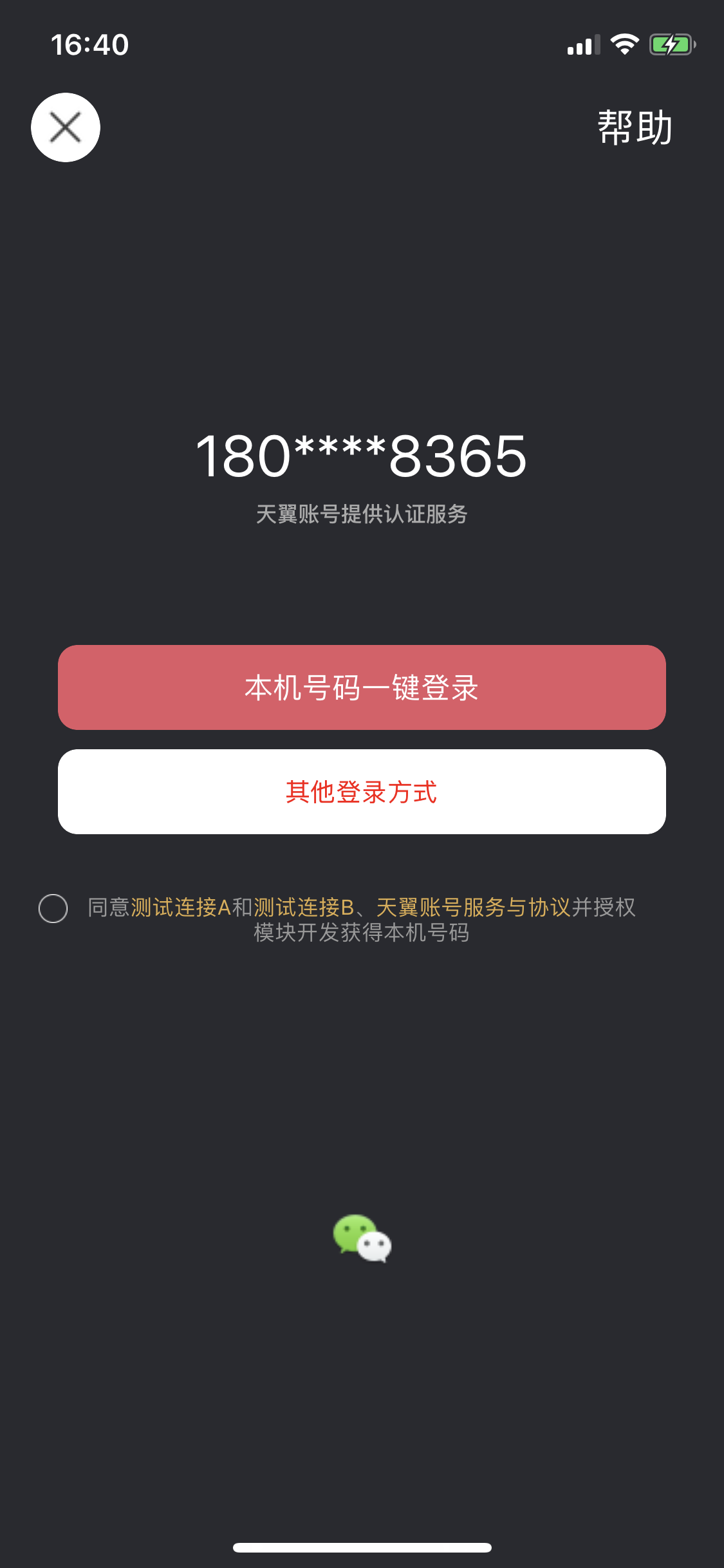
横竖屏+弹窗+自动旋转模式
//iOS 弹窗模式 let screenWidth_Portrait = api.winWidth; //竖屏宽 let screenHeight_Portrait = api.winHeight; //竖屏宽 let screenWidth_Landscape = api.winHeight; //横屏宽(即竖屏高) let screenHeight_Landscape = api.winWidth; //横屏高(即竖屏宽) var screenScale = screenWidth_Portrait / 375.0; //相对iphone6屏幕 if (screenScale > 1) { screenScale = 1; //大屏的无需放大 } //竖屏 //窗口中心 let clAuthWindowOrientationCenterX_Portrait = screenWidth_Portrait * 0.5; let clAuthWindowOrientationCenterY_Portrait = screenHeight_Portrait * 0.5; //窗口宽高 let clAuthWindowOrientationWidth_Portrait = screenWidth_Portrait * 0.8; let clAuthWindowOrientationHeight_Portrait = clAuthWindowOrientationWidth_Portrait * 0.8; let clLayoutLogoTop_Portrait = screenScale * 25; let clLayoutLogoWidth_Portrait = 60 * screenScale; let clLayoutLogoHeight_Portrait = 60 * screenScale; let clLayoutLogoCenterX_Portrait = 0; let clLayoutPhoneCenterY_Portrait = -20 * screenScale; let clLayoutPhoneLeft_Portrait = 50 * screenScale; let clLayoutPhoneRight_Portrait = -50 * screenScale; let clLayoutPhoneHeight_Portrait = 20 * screenScale; let clLayoutLoginBtnCenterY_Portrait = clLayoutPhoneCenterY_Portrait + clLayoutPhoneHeight_Portrait * 0.5 * screenScale + 20 * screenScale + 15 * screenScale; let clLayoutLoginBtnHeight_Portrait = 30 * screenScale; let clLayoutLoginBtnLeft_Portrait = 70 * screenScale; let clLayoutLoginBtnRight_Portrait = -70 * screenScale; let clLayoutAppPrivacyLeft_Portrait = 40 * screenScale; let clLayoutAppPrivacyRight_Portrait = -40 * screenScale; let clLayoutAppPrivacyBottom_Portrait = 0 * screenScale; let clLayoutAppPrivacyHeight_Portrait = 45 * screenScale; let clLayoutSloganLeft_Portrait = 0; let clLayoutSloganRight_Portrait = 0; let clLayoutSloganHeight_Portrait = 15 * screenScale; let clLayoutSloganBottom_Portrait = clLayoutAppPrivacyBottom_Portrait - clLayoutAppPrivacyHeight_Portrait; //横屏 //窗口中心 let clAuthWindowOrientationCenterX_Landscape = screenWidth_Landscape * 0.5; let clAuthWindowOrientationCenterY_Landscape = screenHeight_Landscape * 0.5; //窗口宽高 let clAuthWindowOrientationWidth_Landscape = screenWidth_Portrait * 0.8; //窗口宽度为竖屏宽度的0.8; let clAuthWindowOrientationHeight_Landscape = clAuthWindowOrientationWidth_Landscape * 0.8; //窗口高度为窗口宽度的0.8 let clLayoutLogoWidth_Landscape = 60 * screenScale; let clLayoutLogoHeight_Landscape = 60 * screenScale; let clLayoutLogoCenterX_Landscape = 0; let clLayoutLogoTop_Landscape = 25 * screenScale; let clLayoutPhoneCenterY_Landscape = -20 * screenScale; let clLayoutPhoneLeft_Landscape = 50 * screenScale; let clLayoutPhoneRight_Landscape = -50 * screenScale; let clLayoutPhoneHeight_Landscape = 20 * screenScale; let clLayoutLoginBtnCenterY_Landscape = clLayoutPhoneCenterY_Landscape + clLayoutPhoneHeight_Landscape * 0.5 * screenScale + 20 * screenScale + 15 * screenScale; let clLayoutLoginBtnHeight_Landscape = 30 * screenScale; let clLayoutLoginBtnLeft_Landscape = 70 * screenScale; let clLayoutLoginBtnRight_Landscape = -70 * screenScale; let clLayoutAppPrivacyLeft_Landscape = 40 * screenScale; let clLayoutAppPrivacyRight_Landscape = -40 * screenScale; let clLayoutAppPrivacyBottom_Landscape = 0 * screenScale; let clLayoutAppPrivacyHeight_Landscape = 45 * screenScale; let clLayoutSloganLeft_Landscape = 0; let clLayoutSloganRight_Landscape = 0; let clLayoutSloganHeight_Landscape = 15 * screenScale; let clLayoutSloganBottom_Landscape = clLayoutAppPrivacyBottom_Landscape - clLayoutAppPrivacyHeight_Landscape; this.ios_uiConfigure = { clBackgroundImg: "image/shanyanImg/eb9a0dae18491990a43fe02832d3cafa.jpg", shouldAutorotate: true, /**支持方向 * 如支持横竖屏,需同时设置 clOrientationLayOutPortrait 和 clOrientationLayOutLandscape * 0:UIInterfaceOrientationMaskPortrait * 1:UIInterfaceOrientationMaskLandscapeLeft * 2:UIInterfaceOrientationMaskLandscapeRight * 3:UIInterfaceOrientationMaskPortraitUpsideDown * 4:UIInterfaceOrientationMaskLandscape * 5:UIInterfaceOrientationMaskAll * 6:UIInterfaceOrientationMaskAllButUpsideDown * */ supportedInterfaceOrientations: 5, /**偏好方向 * -1:UIInterfaceOrientationUnknown * 0:UIInterfaceOrientationPortrait * 1:UIInterfaceOrientationPortraitUpsideDown * 2:UIInterfaceOrientationLandscapeLeft * 3:UIInterfaceOrientationLandscapeRight * */ //偏好方向默认Portrait preferredInterfaceOrientationForPresentation: Number(5), clNavigationBackgroundClear: true, //导航栏透明 clNavigationBackBtnImage: "image/shanyanImg/close-white.png", //返回按钮图片 clNavBackBtnAlimentRight: true, //返回按钮居右 clLogoImage: "image/shanyanImg/logo_shanyan_text.png", //logo图片 clLoginBtnText: "本机号一键登录", //一键登录按钮文字 clLoginBtnTextColor: [1, 1, 1, 1.0], //rgba clLoginBtnBgColor: [0.2, 0.8, 0.2, 1.0], //rgba clLoginBtnTextFont: 15 * screenScale, clLoginBtnCornerRadius: 10, clLoginBtnBorderWidth: 0.5, clLoginBtnBorderColor: [0.1, 0.8, 0.1, 1.0], //rgba clPhoneNumberFont: 20.0 * screenScale, clAuthTypeUseWindow: true, clAuthWindowCornerRadius: 20, clAppPrivacyColor: [ [0.6, 0.6, 0.6, 1.0], [0, 1, 0, 1.0] ], //2 item,commomTextColor and appPrivacyTextColor clAppPrivacyTextFont: 11 * screenScale, clAppPrivacyTextAlignment: 0, //0: center 1: left 2: right clAppPrivacyFirst: ["测试连接A", "https://www.baidu.com"], // 2 item, name and url clAppPrivacySecond: ["测试连接B", "https://www.sina.com"], // 2 item, name and url clCheckBoxVerticalAlignmentToAppPrivacyCenterY: true, clCheckBoxSize: [30 * screenScale, 30 * screenScale], //2 item, width and height clCheckBoxImageEdgeInsets: [2 * screenScale, 10 * screenScale, 13 * screenScale, 5 * screenScale], //4 item, top left bottom right clCheckBoxUncheckedImage: "static/img/checkBoxNor.png", clCheckBoxCheckedImage: "static/img/checkBoxSEL.png", clLoadingSize: [50, 50], //2 item, width and height clLoadingTintColor: [0.2, 0.8, 0.2, 1], clLoadingBackgroundColor: [1, 1, 1, 1], clLoadingCornerRadius: 5, //竖屏布局对象 clOrientationLayOutPortrait: { //窗口 clAuthWindowOrientationWidth: clAuthWindowOrientationWidth_Portrait, clAuthWindowOrientationHeight: clAuthWindowOrientationHeight_Portrait, clAuthWindowOrientationCenterX: clAuthWindowOrientationCenterX_Portrait, clAuthWindowOrientationCenterY: clAuthWindowOrientationCenterY_Portrait, //控件 clLayoutLogoWidth: clLayoutLogoWidth_Portrait, clLayoutLogoHeight: clLayoutLogoHeight_Portrait, clLayoutLogoCenterX: clLayoutLogoCenterX_Portrait, clLayoutLogoTop: clLayoutLogoTop_Portrait, clLayoutPhoneCenterY: clLayoutPhoneCenterY_Portrait, clLayoutPhoneHeight: clLayoutPhoneHeight_Portrait, clLayoutPhoneLeft: clLayoutPhoneLeft_Portrait, clLayoutPhoneRight: clLayoutPhoneRight_Portrait, clLayoutLoginBtnCenterY: clLayoutLoginBtnCenterY_Portrait, clLayoutLoginBtnHeight: clLayoutLoginBtnHeight_Portrait, clLayoutLoginBtnLeft: clLayoutLoginBtnLeft_Portrait, clLayoutLoginBtnRight: clLayoutLoginBtnRight_Portrait, clLayoutAppPrivacyLeft: clLayoutAppPrivacyLeft_Portrait, clLayoutAppPrivacyRight: clLayoutAppPrivacyRight_Portrait, clLayoutAppPrivacyBottom: clLayoutAppPrivacyBottom_Portrait, clLayoutAppPrivacyHeight: clLayoutAppPrivacyHeight_Portrait, clLayoutSloganLeft: clLayoutSloganLeft_Portrait, clLayoutSloganRight: clLayoutSloganRight_Portrait, clLayoutSloganHeight: clLayoutSloganHeight_Portrait, clLayoutSloganBottom: clLayoutSloganBottom_Portrait, }, //横屏布局对象 clOrientationLayOutLandscape: { //窗口 clAuthWindowOrientationWidth: clAuthWindowOrientationWidth_Landscape, clAuthWindowOrientationHeight: clAuthWindowOrientationHeight_Landscape, clAuthWindowOrientationCenterX: clAuthWindowOrientationCenterX_Landscape, clAuthWindowOrientationCenterY: clAuthWindowOrientationCenterY_Landscape, //控件 clLayoutLogoWidth: clLayoutLogoWidth_Landscape, clLayoutLogoHeight: clLayoutLogoHeight_Landscape, clLayoutLogoCenterX: clLayoutLogoCenterX_Landscape, clLayoutLogoTop: clLayoutLogoTop_Landscape, clLayoutPhoneCenterY: clLayoutPhoneCenterY_Landscape, clLayoutPhoneHeight: clLayoutPhoneHeight_Landscape, clLayoutPhoneLeft: clLayoutPhoneLeft_Landscape, clLayoutPhoneRight: clLayoutPhoneRight_Landscape, clLayoutLoginBtnCenterY: clLayoutLoginBtnCenterY_Landscape, clLayoutLoginBtnHeight: clLayoutLoginBtnHeight_Landscape, clLayoutLoginBtnLeft: clLayoutLoginBtnLeft_Landscape, clLayoutLoginBtnRight: clLayoutLoginBtnRight_Landscape, clLayoutAppPrivacyLeft: clLayoutAppPrivacyLeft_Landscape, clLayoutAppPrivacyRight: clLayoutAppPrivacyRight_Landscape, clLayoutAppPrivacyBottom: clLayoutAppPrivacyBottom_Landscape, clLayoutAppPrivacyHeight: clLayoutAppPrivacyHeight_Landscape, clLayoutSloganLeft: clLayoutSloganLeft_Landscape, clLayoutSloganRight: clLayoutSloganRight_Landscape, clLayoutSloganHeight: clLayoutSloganHeight_Landscape, clLayoutSloganBottom: clLayoutSloganBottom_Landscape, }, }
弹窗、半屏带蒙版效果图(竖屏效果)
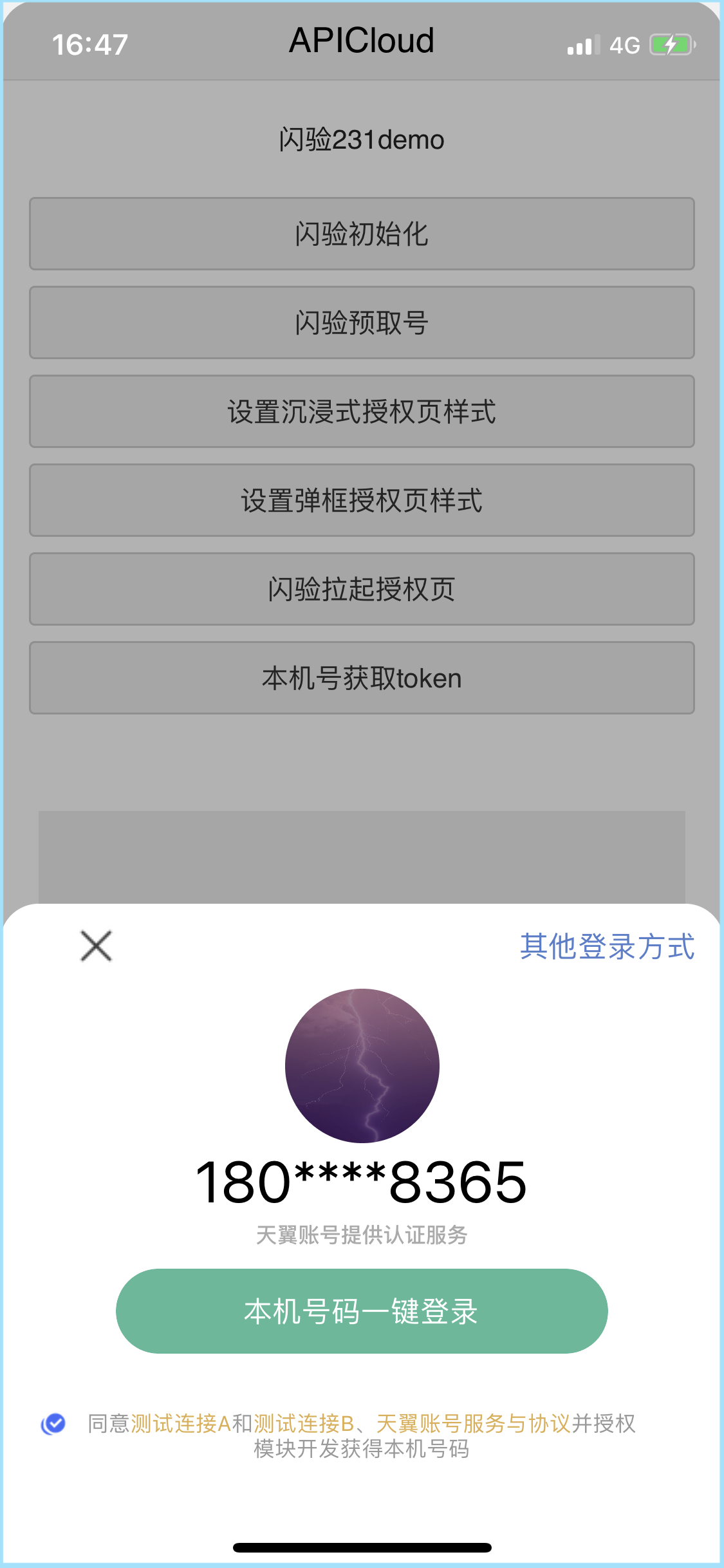
弹窗、半屏带蒙版配置代码
function setUIConfigure() { //iOS 全屏模式 let screenWidth_Portrait = api.winWidth; //竖屏宽 let screenHeight_Portrait = api.winHeight; //竖屏高 var screenScale = screenWidth_Portrait / 375.0; //相对iphone6屏幕 if (screenScale > 1) { screenScale = 1; //大屏的无需放大 } // 底部安全距离 let safeArea_top = api.safeArea.top; let safeArea_bottom = api.safeArea.bottom; //竖屏 /*window*/ let clWindowCornerRadius = 20; let clWindowHeight = 310*screenScale + clWindowCornerRadius + safeArea_bottom; /*otherLoginBtn*/ let clOtherLoginBtnTop_Portrait = screenHeight_Portrait - clWindowHeight + clWindowCornerRadius; /*logo*/ let clLayoutLogoTop_Portrait = screenHeight_Portrait - clWindowHeight + clWindowCornerRadius + safeArea_top; let clLayoutLogoWidth_Portrait = 80 * screenScale; let clLayoutLogoHeight_Portrait = 80 * screenScale; let clLayoutLogoCenterX_Portrait = 0; let logoCornerRadius = clLayoutLogoWidth_Portrait * 0.5; /*phonenumber*/ let clLayoutPhoneTop_Portrait = clLayoutLogoTop_Portrait + clLayoutLogoHeight_Portrait + 5*screenScale; let clLayoutPhoneLeft_Portrait = 50 * screenScale; let clLayoutPhoneRight_Portrait = -50 * screenScale; let clLayoutPhoneHeight_Portrait = 30 * screenScale; /*slogan*/ let clLayoutSloganLeft_Portrait = 0; let clLayoutSloganRight_Portrait = 0; let clLayoutSloganHeight_Portrait = 15 * screenScale; let clLayoutSloganTop_Portrait = clLayoutPhoneTop_Portrait + clLayoutPhoneHeight_Portrait + 5*screenScale; /*login-btn*/ let clLayoutLoginBtnTop_Portrait = clLayoutSloganTop_Portrait + clLayoutSloganHeight_Portrait + 10*screenScale; let clLayoutLoginBtnMargin = 60 * screenScale; let clLayoutLoginBtnHeight_Portrait = 44 * screenScale; let clLayoutLoginBtnCenterX_Portrait = 0; let clLayoutLoginBtnWidth_Portrait = screenWidth_Portrait - 2*clLayoutLoginBtnMargin; let loginBtnCornerRadius = 0.5*clLayoutLoginBtnHeight_Portrait; /*privacy*/ let clLayoutAppPrivacyTop_Portrait = clLayoutLoginBtnTop_Portrait + clLayoutLoginBtnHeight_Portrait + 20*screenScale; let clLayoutAppPrivacyLeft_Portrait = 40 * screenScale; let clLayoutAppPrivacyRight_Portrait = -40 * screenScale; let clLayoutAppPrivacyHeight_Portrait = 45 * screenScale; this.ios_uiConfigure = { //clBackgroundImg: "image/bgImage.png", shouldAutorotate: true, /**支持方向 * 如支持横竖屏,需同时设置 clOrientationLayOutPortrait 和 clOrientationLayOutLandscape * 0:UIInterfaceOrientationMaskPortrait * 1:UIInterfaceOrientationMaskLandscapeLeft * 2:UIInterfaceOrientationMaskLandscapeRight * 3:UIInterfaceOrientationMaskPortraitUpsideDown * 4:UIInterfaceOrientationMaskLandscape * 5:UIInterfaceOrientationMaskAll * 6:UIInterfaceOrientationMaskAllButUpsideDown * */ supportedInterfaceOrientations: 5, /**偏好方向 * -1:UIInterfaceOrientationUnknown * 0:UIInterfaceOrientationPortrait * 1:UIInterfaceOrientationPortraitUpsideDown * 2:UIInterfaceOrientationLandscapeLeft * 3:UIInterfaceOrientationLandscapeRight * */ //偏好方向默认Portrait preferredInterfaceOrientationForPresentation: Number(5), clAuthTypeUseWindow: true, clAuthWindowCornerRadius: clWindowCornerRadius, clNavigationBarHidden: true, //clLogoImage: path, //logo图片 clLogoImage: "image/sy_login_bg.png", clLogoCornerRadius: logoCornerRadius, clPhoneNumberFont: 30.0 * screenScale, clPhoneNumberColor: [0, 0, 0, 1.0], clPhoneNumberFont: 30 * screenScale, clLoginBtnText: "本机号码一键登录", //一键登录按钮文字 clLoginBtnTextColor: [1, 1, 1, 1.0], //rgba clLoginBtnBgColor: [0.33, 0.73, 0.6, 1.0], //rgba clLoginBtnTextFont: 15 * screenScale, clLoginBtnCornerRadius: loginBtnCornerRadius, clLoginBtnBorderWidth: 0.5, //clLoginBtnBorderColor: [0.89, 0.35, 0.4, 1.0], //rgba clAppPrivacyColor: [ [0.6, 0.6, 0.6, 1.0], [0.88, 0.68, 0.3, 1.0] ], //2 item,commomTextColor and appPrivacyTextColor clAppPrivacyTextFont: 11 * screenScale, clAppPrivacyTextAlignment: 0, //0: center 1: left 2: right clAppPrivacyFirst: ["测试连接A", "https://www.baidu.com"], // 2 item, name and url clAppPrivacySecond: ["测试连接B", "https://www.sina.com"], // 2 item, name and url clCheckBoxVerticalAlignmentToAppPrivacyCenterY: true, clCheckBoxSize: [30 * screenScale, 30 * screenScale], //2 item, width and height clCheckBoxImageEdgeInsets: [2 * screenScale, 10 * screenScale, 13 * screenScale, 5 * screenScale], //4 item, top left bottom right clCheckBoxUncheckedImage: "image/shanyanImg/checkbox-multiple-bl.png", clCheckBoxCheckedImage: "image/shanyanImg/checkbox-multiple-ma.png", clLoadingSize: [50, 50], //2 item, width and height clLoadingTintColor: [0.2, 0.8, 0.2, 1], clLoadingBackgroundColor: [1, 1, 1, 1], clLoadingCornerRadius: 5, // 闪验slogan //clShanYanSloganTextColor: [12, 0, 0, 1], clShanYanSloganHidden: 1, // 运营商协议 默认0:前置 1:后置 clOperatorPrivacyAtLast: 1, // 自定义协议标题-按自定义协议对应顺序 clAppPrivacyWebTitleList: ["用户隐私协议一", "用户服务协议二"], /**checkBox 未勾选时 提示文本,默认:"请勾选协议"*/ //clCheckBoxTipMsg: "协议未勾选,请勾选", //竖屏布局对象 clOrientationLayOutPortrait: { //控件 clLayoutLogoWidth: clLayoutLogoWidth_Portrait, clLayoutLogoHeight: clLayoutLogoHeight_Portrait, clLayoutLogoCenterX: clLayoutLogoCenterX_Portrait, clLayoutLogoTop: clLayoutLogoTop_Portrait, clLayoutPhoneTop: clLayoutPhoneTop_Portrait, clLayoutPhoneHeight: clLayoutPhoneHeight_Portrait, clLayoutPhoneLeft: clLayoutPhoneLeft_Portrait, clLayoutPhoneRight: clLayoutPhoneRight_Portrait, clLayoutLoginBtnTop: clLayoutLoginBtnTop_Portrait, clLayoutLoginBtnCenterX: clLayoutLoginBtnCenterX_Portrait, clLayoutLoginBtnHeight: clLayoutLoginBtnHeight_Portrait, clLayoutLoginBtnWidth: clLayoutLoginBtnWidth_Portrait, clLayoutAppPrivacyTop: clLayoutAppPrivacyTop_Portrait, clLayoutAppPrivacyLeft: clLayoutAppPrivacyLeft_Portrait, clLayoutAppPrivacyRight: clLayoutAppPrivacyRight_Portrait, clLayoutAppPrivacyHeight: clLayoutAppPrivacyHeight_Portrait, clLayoutSloganLeft: clLayoutSloganLeft_Portrait, clLayoutSloganRight: clLayoutSloganRight_Portrait, clLayoutSloganHeight: clLayoutSloganHeight_Portrait, clLayoutSloganTop: clLayoutSloganTop_Portrait, }, //横屏布局对象 (如app本身不支持横屏,可不需设置横屏下UI配置对象) // clOrientationLayOutLandscape: {}, //自定义控件 widgets: { widget1: { widgetId: "customView_one", //字符标记 type: "Button", // 类型:Button:按钮,ImageView:图片 TextView:文本 textContent: "其他登录方式", //文字 textFont: 15, //字体 textColor: [0.33, 0.5, 0.8, 1], //文字颜色[r,g,b,a] isFinish: true, //点击销毁授权页, clLayoutWidth: 120, clLayoutHeight: 44, clLayoutRight: 0, clLayoutTop: clOtherLoginBtnTop_Portrait, }, widget2: { widgetId: "customView_two", //字符标记 type: "Button", // 类型:Button:按钮,ImageView:图片 TextView:文本 image: "image/shanyanImg/close-black.png", isFinish: true, //点击销毁授权页, clLayoutWidth: 60, clLayoutHeight: 44, clLayoutLeft: 10, clLayoutTop: clOtherLoginBtnTop_Portrait, }, widget3: { widgetId: "customView_three", //字符标记 type: "ImageView", // 类型:Button:按钮,ImageView:图片 TextView:文本 viewLever: 0, // 控件显示层级:0在授权页最下层,不会覆盖登录按钮等控件 backgroundColor: [1, 1, 1, 1], //控件背景色[r,g,b,a] clLayoutBottom: clWindowCornerRadius, clLayoutWidth:api.winWidth, clLayoutHeight: clWindowHeight, clLayoutCenterX:0, cornerRadius: clWindowCornerRadius, } } }; //设置自定义控件点击回调 shanyan.setCustomInterface(function(customInterface) { api.toast({ msg: '自定义控件点击:\n' + JSON.stringify(customInterface), location: 'middle' }); document.getElementById("resultId").innerHTML = "result:" + JSON.stringify(customInterface); console.log(JSON.stringify(customInterface)); }); }
属性、布局参数
注:授权页基本控件均支持上、下、左、右、宽、高、水平中心、竖直中心布局设置,布局通过布局对象设置
| 配置字段名 | 类型 | 类型说明 | 描述 |
|---|---|---|---|
| clBackgroundImg | String | 图片路径 | 授权页-背景图片 |
| clBackgroundColor | Array | [r,g,b,a] | 授权页-背景色 |
| clAuthPageCloseAnimate | Bool | true/false | 关闭授权页面动画,默认 true |
| clAuthWindowPresentingAnimate | Bool | true/false | 弹出授权页面动画,默认 true |
| clNavigationBarHidden | Bool | true/false | 导航栏 是否隐藏 |
| clNavigationBackgroundClear | Bool | true/false | 导航栏 背景透明 |
| clNavigationBackBtnImage | String | 图片路径 | 导航栏左侧返回按钮图片 |
| clNavigationBackBtnHidden | Bool | true/false | 导航栏自带返回按钮隐藏 |
| clNavBackBtnAlimentRight | Bool | true/false | 自带返回(关闭)按钮位置居右 |
| clNavigationBottomLineHidden | Bool | true/false | 导航栏分割线 是否隐藏 |
| clNavigationTintColor | Array | [r,g,b,a] | 导航栏 文字颜色 |
| clNavigationBarTintColor | Array | [r,g,b,a] | 导航栏 背景色 |
| clNavigationBackgroundImage | String | 图片路径 | 导航栏 背景图片 |
| clNavigationShadowImage | String | 图片路径 | 导航栏 导航栏底部分割线(图片 |
| clNavigationBarStyle | Number | 枚举值 | UIBarStyleBlack |
| clLogoImage | String | 图片路径 | LOGO 图片 |
| clLogoCornerRadius | Number | float | LOGO 图片 |
| clLogoHiden | Bool | true/false | LOGO 显隐 |
| clPhoneNumberColor | Array | [r,g,b,a] | 手机号颜色 |
| clPhoneNumberFont | Number | float | 手机号字体 |
| clPhoneNumberTextAlignment | Number | 枚举值 | 手机号对齐方式 |
| clLoginBtnText | String | text | 按一键登录钮文字 |
| clLoginBtnTextColor | Array | [r,g,b,a] | 一键登录按钮文字颜色 |
| clLoginBtnBgColor | Array | [r,g,b,a] | 一键登录按钮背景颜色 |
| clLoginBtnTextFont | Number | float | 一键登录按钮文字字体 |
| clLoginBtnNormalBgImage | String | 图片路径 | 一键登录按钮背景图片 |
| clLoginBtnHightLightBgImage | String | 图片路径 | 一键登录按钮背景高亮图片 |
| clLoginBtnBorderColor | Array | [r,g,b,a] | 一键登录按钮边框颜色 |
| clLoginBtnCornerRadius | Number | float | 一键登录按钮圆角 |
| clLoginBtnBorderWidth | Number | float | 一键登录按钮边框 |
| clAppPrivacyColor | Array | [[r,g,b,a],[r,g,b,a]] | 隐私条款名称颜色:[基础文字颜色 rgba,款颜色 rgba] eg.[[1,0,1,1],[1,0.8,0.8,1]] |
| clAppPrivacyTextFont | Number | float | 隐私条款文字字体 |
| clAppPrivacyTextAlignment | Number | 枚举值 | 隐私条款文字对齐方式 |
| clAppPrivacyPunctuationMarks | Bool | true/false | 运营商隐私条款书名号 |
| clAppPrivacyLineSpacing | Number | float | 多行时行距 |
| clAppPrivacyNeedSizeToFit | Bool | true/false | 是否需要 sizeToFit,设置后与宽高约束的冲突请自行考虑 |
| clAppPrivacyAbbreviatedName | String | text | 隐私条款--APP 名称简写 默认取 CFBundledisplayname 设置描述文本四后此属性无效 |
| clAppPrivacyFirst | Array | [name,url] | 隐私条款一:需同时设置 Name 和 UrlString |
| clAppPrivacySecond | Array | [name,url] | 隐私条款二:需同时设置 Name 和 UrlString |
| clAppPrivacyNormalDesTextFirst | String | text | 描述文本一 default:"同意" |
| clAppPrivacyNormalDesTextSecond | String | text | 描述文本二 default:"和" |
| clAppPrivacyNormalDesTextThird | String | text | 描述文本三 default:"、" |
| clAppPrivacyNormalDesTextFourth | String | text | 描述文本四 default: "并授权 AppName 使用认证服务" |
| clAppPrivacyWebBackBtnImage | String | 图片路径 | 隐私协议 WEB 页面导航返回按钮图片 |
| clSloganTextFont | Number | float | 运营商品牌标签文字字体 |
| clSloganTextColor | Array | [r,g,b,a] | 运营商品牌标签文字颜色 |
| clSlogaTextAlignment | Number | 枚举值 | 运营商品牌标签文字对齐方式 |
| clCheckBoxHidden | Bool | true/false | 协议勾选框 |
| clCheckBoxValue | Bool | true/false | 协议勾选框默认值(默认不选中 |
| clCheckBoxSize | Array | [width,height] | 协议勾选框 尺寸 |
| clCheckBoxImageEdgeInsets | Array | [top,left,bottom,right] | 协议勾选框 UIButton.image 图片缩进 |
| clCheckBoxVerticalAlignmentToAppPrivacyTop | Bool | true/false | 协议勾选框 设置 CheckBox 顶部与隐私协议控件顶部对齐 |
| clCheckBoxVerticalAlignmentToAppPrivacyCenterY | Bool | true/false | 协议勾选框 设置 CheckBox 顶部与隐私协议控件竖向中心对齐 |
| clCheckBoxUncheckedImage | String | 图片路径 | 协议勾选框 非选中状态图片 |
| clCheckBoxCheckedImage | String | 图片路径 | 协议勾选框 选中状态图片 |
| clLoadingSize | Array | [width,height] | Loading 大小 |
| clLoadingCornerRadius | Number | float | Loading 圆角 |
| clLoadingBackgroundColor | Array | [r,g,b,a] | Loading 背景色 |
| clLoadingTintColor | Array | [r,g,b,a] | Loading Indicator 渲染色 |
| shouldAutorotate | Bool | true/false | 是否支持自动旋转 |
| supportedInterfaceOrientations | Number | 枚举值 | 支持方向 |
| preferredInterfaceOrientationForPresentation | Number | 枚举值 | 默认方向 |
| clAuthTypeUseWindow | Bool | true/false | 以窗口方式显示 default is NO |
| clAuthWindowCornerRadius | Number | float | 窗口圆角 |
| clAuthWindowModalTransitionStyle | Number | 枚举值 | 弹出方式 |
| clOrientationLayOutPortrait | Object | CLOrientationLayOut | 布局类(竖屏) |
| clOrientationLayOutLandscape | Object | CLOrientationLayOut | 布局类(横屏) |
布局类:**CLOrientationLayOut**:
LOGO 图片
| 配置字段 | 类型 |
|---|---|
| clLayoutLogoLeft | Number |
| clLayoutLogoTop | Number |
| clLayoutLogoRight | Number |
| clLayoutLogoBottom | Number |
| clLayoutLogoWidth | Number |
| clLayoutLogoHeight | Number |
| clLayoutLogoCenterX | Number |
| clLayoutLogoCenterY | Number |
手机号显示控件
| 配置字段 | 类型 |
|---|---|
| clLayoutPhoneLeft | Number |
| clLayoutPhoneTop | Number |
| clLayoutPhoneRight | Number |
| clLayoutPhoneBottom | Number |
| clLayoutPhoneWidth | Number |
| clLayoutPhoneHeight | Number |
| clLayoutPhoneCenterX | Number |
| clLayoutPhoneCenterY | Number |
一键登录授权按钮(不得隐藏)
| 配置字段 | 类型 |
|---|---|
| clLayoutLoginBtnLeft | Number |
| clLayoutLoginBtnTop | Number |
| clLayoutLoginBtnRight | Number |
| clLayoutLoginBtnBottom | Number |
| clLayoutLoginBtnWidth | Number |
| clLayoutLoginBtnHeight | Number |
| clLayoutLoginBtnCenterX | Number |
| clLayoutLoginBtnCenterY | Number |
隐私条款(运营商隐私条款不得隐藏,用户条款不限)
| 配置字段 | 类型 |
|---|---|
| clLayoutAppPrivacyLeft | Number |
| clLayoutAppPrivacyTop | Number |
| clLayoutAppPrivacyRight | Number |
| clLayoutAppPrivacyBottom | Number |
| clLayoutAppPrivacyWidth | Number |
| clLayoutAppPrivacyHeight | Number |
| clLayoutAppPrivacyCenterX | Number |
| clLayoutAppPrivacyCenterY | Number |
运营商品牌标签(认证服务由中国移动 / 联通 / 电信提供)
| 配置字段 | 类型 |
|---|---|
| clLayoutSloganLeft | Number |
| clLayoutSloganTop | Number |
| clLayoutSloganRight | Number |
| clLayoutSloganBottom | Number |
| clLayoutSloganWidth | Number |
| clLayoutSloganHeight | Number |
| clLayoutSloganCenterX | Number |
| clLayoutSloganCenterY | Number |
窗口模式
| 配置项 | 配置字段 | 类型 |
|---|---|---|
| 窗口居中 | clAuthWindowOrientationCenter | Number |
| 窗口左上角 | clAuthWindowOrientationOrigin | Number |
| 窗口宽度 | clAuthWindowOrientationWidth | Number |
| 窗口高度 | clAuthWindowOrientationHeight | Number |
自定义控件
widgets:自定义控件允许自定义导航栏左侧和右侧按钮,将替换 sdk 自带的返回按钮。允许添加控件到授权页上。
调用示例
this.ios_uiConfigure = { clBackgroundImg: "static/a.jpg", clOrientationLayOutPortrait: { ... } //自定义控件 widgets: { widget0: { widgetId: "customView_nav_left", //字符标记 type: "Button", // 类型:Button:按钮,ImageView:图片 TextView:文本 navPosition: "navleft", //按钮位置 navleft:导航栏左侧 ,navright:导航栏右侧(不设置默认添加到授权页上),当设置为导航栏控件时,仅宽高可设置,位置固定 textContent: "自定义左侧返回按钮",//文字 textFont: 11,//字体 textColor: [1,1,0,1],//文字颜色[r,g,b,a] // backgroundColor: [0,0,1,1],//控件背景色[r,g,b,a] image: "image/shanyanImg/close-black.png", // cornerRadius: 10,//圆角,设置圆角时请设置masksToBounds:true // masksToBounds:true,//圆角相关 isFinish: true,//点击销毁授权页, // clLayoutLeft:12, // clLayoutTop:60, // clLayoutRight:-12, // clLayoutBottom:-80, clLayoutWidth:40, clLayoutHeight:40, // clLayoutCenterX:0, // clLayoutCenterY:0, }, widgetnavRight: { widgetId: "customView_nav_right", //字符标记 type: "Button", // 类型:Button:按钮,ImageView:图片 TextView:文本 navPosition: "navright", //按钮位置 navleft:导航栏左侧 ,navright:导航栏右侧(不设置默认添加到授权页上),当设置为导航栏控件时,仅宽高可设置,位置固定 textContent: "自定义控件1(点击销毁授权页)",//文字 textFont: 13,//字体 textColor: [0,1,0,1],//文字颜色[r,g,b,a] backgroundColor: [0,0,1,1],//控件背景色[r,g,b,a] image: "image/shanyanImg/checkbox-multiple-ma.png", cornerRadius: 10,//圆角,设置圆角时请设置masksToBounds:true masksToBounds:true,//圆角相关 isFinish: true,//点击销毁授权页, // clLayoutLeft:12, // clLayoutTop:60, // clLayoutRight:-12, // clLayoutBottom:-80, clLayoutWidth:60, clLayoutHeight:40, // clLayoutCenterX:0, // clLayoutCenterY:0, }, widget1: { widgetId: "customView_one", //字符标记 type: "Button", // 类型:Button:按钮,ImageView:图片 TextView:文本 textContent: "自定义控件1(点击销毁授权页)",//文字 textFont: 13,//字体 textColor: [0,1,0,1],//文字颜色[r,g,b,a] backgroundColor: [0,0,1,1],//控件背景色[r,g,b,a] image: "image/shanyanImg/logo_shanyan_text.png", cornerRadius: 10,//圆角,设置圆角时请设置masksToBounds:true masksToBounds:true,//圆角相关 isFinish: true,//点击销毁授权页, // clLayoutLeft:12, // clLayoutTop:60, // clLayoutRight:-12, clLayoutBottom:-50, clLayoutWidth:180, clLayoutHeight:50, clLayoutCenterX:0, // clLayoutCenterY:0, }, widget2: { widgetId: "customView_two", //字符标记 type: "TextView", // 类型:Button:按钮,ImageView:图片 TextView:文本 textContent: "自定义控件文本自定义控件文本自定义控件文本自定义控件文本自定义控件文本自定义控件文本自定义控件文本",//文字 textFont: 10,//字体 textColor: [1,0.5,0.6,1],//文字颜色[r,g,b,a] backgroundColor: [0,1,0,1],//控件背景色[r,g,b,a] numberOfLines:0, //行数:默认单行, 0:无限,自动换行,其他:指定行数 textAlignment: 2, //0: center 1: left 2: right //仅TextView有效 clLayoutLeft:80, // clLayoutTop:60, clLayoutRight:-80, clLayoutBottom:-120, // clLayoutWidth:150, clLayoutHeight:60, // clLayoutCenterX:0, // // clLayoutCenterY:0, }, widget3: { widgetId: "customView_three_imageView", //字符标记 type: "ImageView", // 类型:Button:按钮,ImageView:图片 TextView:文本 image: "image/shanyanImg/shanyanlogo1.png", backgroundColor: [0,1,0,1],//控件背景色[r,g,b,a] cornerRadius: 40,//圆角,设置圆角时请设置masksToBounds:true masksToBounds:true,//圆角相关 clLayoutLeft:80, clLayoutTop:160, clLayoutRight:-80, // clLayoutBottom:-280, // clLayoutWidth:150, clLayoutHeight:80, // clLayoutCenterX:0, // clLayoutCenterY:0, } } } //设置自定义控件点击回调,返回信息带有widgetId shanyan.setCustomInterface(function(customInterface) { api.toast({ msg: '自定义控件点击:\n' + JSON.stringify(customInterface), location: 'middle' }); console.log(JSON.stringify(customInterface)); });
widget
控件通用属性
| 字段 | 类型 | 说明 |
|---|---|---|
| widgetId | string | 控件标识 |
| type | string | 控件类型:Button(按钮)、ImageView(图片)、TextView(文本) |
| backgroundColor | Array | 控件背景色,格式:[r,g,b,a] |
| cornerRadius | Number | 圆角半径(设置圆角时需开启 masksToBounds) |
| masksToBounds | bool | 是否裁剪圆角,设置圆角时为 true |
布局属性(通用)
相对于授权页布局,全屏坐标系,从左到右、从上到下为正值,反之为负值。
| 字段 | 类型 | 说明 |
|---|---|---|
| clLayoutLeft | Number | 距离授权页左侧 |
| clLayoutTop | Number | 距离授权页顶部 |
| clLayoutRight | Number | 距离授权页右侧(一般为负值) |
| clLayoutBottom | Number | 距离授权页底部(一般为负值) |
| clLayoutWidth | Number | 控件宽度 |
| clLayoutHeight | Number | 控件高度 |
| clLayoutCenterX | Number | 水平中心偏移,0:居中,正值:向右,负值:向左 |
| clLayoutCenterY | Number | 垂直中心偏移,0:居中,正值:向下,负值:向上 |
Button 独有属性
| 字段 | 类型 | 说明 |
|---|---|---|
| navPosition | string | 按钮位置:navleft(导航栏左侧)、navright(导航栏右侧);不设置默认添加到授权页,设置为导航栏按钮时仅支持设置宽高 |
| textContent | string | 按钮文字 |
| textFont | Number | 字体大小 |
| textColor | Array | 文字颜色,格式:[r,g,b,a] |
| image | string | 按钮左侧图片(非背景图),图片路径 |
| isFinish | bool | 点击后是否自动关闭授权页 |
TextView 独有属性
| 字段 | 类型 | 说明 |
|---|---|---|
| textContent | string | 文本内容 |
| textFont | Number | 字体大小 |
| textColor | Array | 文字颜色,格式:[r,g,b,a] |
| numberOfLines | Number | 行数:默认单行;0:无限行自动换行;其他值:指定行数 |
| textAlignment | Number | 对齐方式:0:居中,1:左对齐,2:右对齐 |
ImageView 独有属性
| 字段 | 类型 | 说明 |
|---|---|---|
| image | string | 背景图片路径 |
二、本机认证 API 使用说明
注:本机认证、免密登录可共用初始化,两个功能同时使用时,只需调用一次初始化即可。
1.初始化
同**免密登录初始化**
2.本机号校验
在初始化执行之后调用,本机号校验界面需自行实现,可以在多个需要校验的页面中调用。
调用示例:
function startAuthentication() { api.showProgress(); setTimeout(function() { api.hideProgress(); }, 5000); shanyan.startAuthentication(function(ret, err) { api.hideProgress(); let platform = api.systemType; if (platform == 'android') { if (ret.code == 1000) { //成功 api.alert({ title: 'SDK获取Token成功', msg: JSON.stringify(ret.result.token), }); } else { //失败 } } else if (platform == 'ios') { if (err != null) { //iOS error存在即为失败 } else { //成功 api.alert({ title: 'SDK获取Token成功', msg: JSON.stringify(ret.data.token), }); } } api.toast({ msg: JSON.stringify(ret), location: 'middle' }); console.log(JSON.stringify(ret)); }); }
返回参数含义如下:
| 字段 | 类型 | 含义 |
|---|---|---|
| result | CLComplete | 返回信息 |
当 result.errorCode 不为空时,返回为
{ "message": "本机号校验获取联通token成功", "data": { "token": "A2-7NA_jWQuN0XsJsZQOY8BtvdKtrhNK9QStebzzyzgh7ElebpB8xGy3rapp4yyxX8-VEVgMhiB3wO4P0PnCZNjtPAZO9KfeODdYxhgn5Qn8vnxOvgk4_Ov_39d56-v1p87-IcFHKlji4nhvCd1VmrxOSHx6KB6i6lZqFYqGgcbKfpG-yaGL6pcY4T9mbrtsOpbUhrdamE7eA1KaruyOdkL1SThGJZt_-8imf91EyrXckg=" }, "code": 1000 }
含义如下:
| 字段 | 类型 | 含义 |
|---|---|---|
| token | String | 用来和后台校验手机号。一次有效。 |
| code | int | code 为 1000:成功,其他:失败 |
3.校验手机号
当本机号校验获取到 token 时,请将 token 传递给后端开发人员,并参考「服务端」文档来实现校验本机号的步骤
这篇文档对您有帮助吗?